



Sharing business data shouldn't mean sharing customer data. But for most teams, getting real-time numbers to the right people still requires manual exports, shared logins, or sending spreadsheets with more information than necessary.
Every business runs on data. But sharing that data across teams often means exposing customer information that most people don't need to see. For small and medium-sized businesses, the choice has been awkward: either restrict access and slow down decisions, or share too much and accept the privacy risk.
There's a better way. By creating a privacy-safe working view in a spreadsheet your team already uses, you can share real-time business data without exposing customer identities. Orders flow in automatically. Names, emails, and phone numbers stay where they belong.
Why This Matters
Most teams solve this problem one of three ways: manual exports, shared logins, or full database access. None of them work well.
Delays: Someone has to pull the report before the meeting can start
Errors: Copy-paste mistakes compound over time
Privacy risk: Partners and franchisees see more customer data than they need
Compliance exposure: GDPR and similar regulations penalize unnecessary data sharing
A PII-safe working view eliminates all four issues. Your team sees the numbers. Your customers' identities stay protected.
How It All Works Together
You connect three pieces: your e-commerce platform, Zapier, and a spreadsheet. Here's the flow:
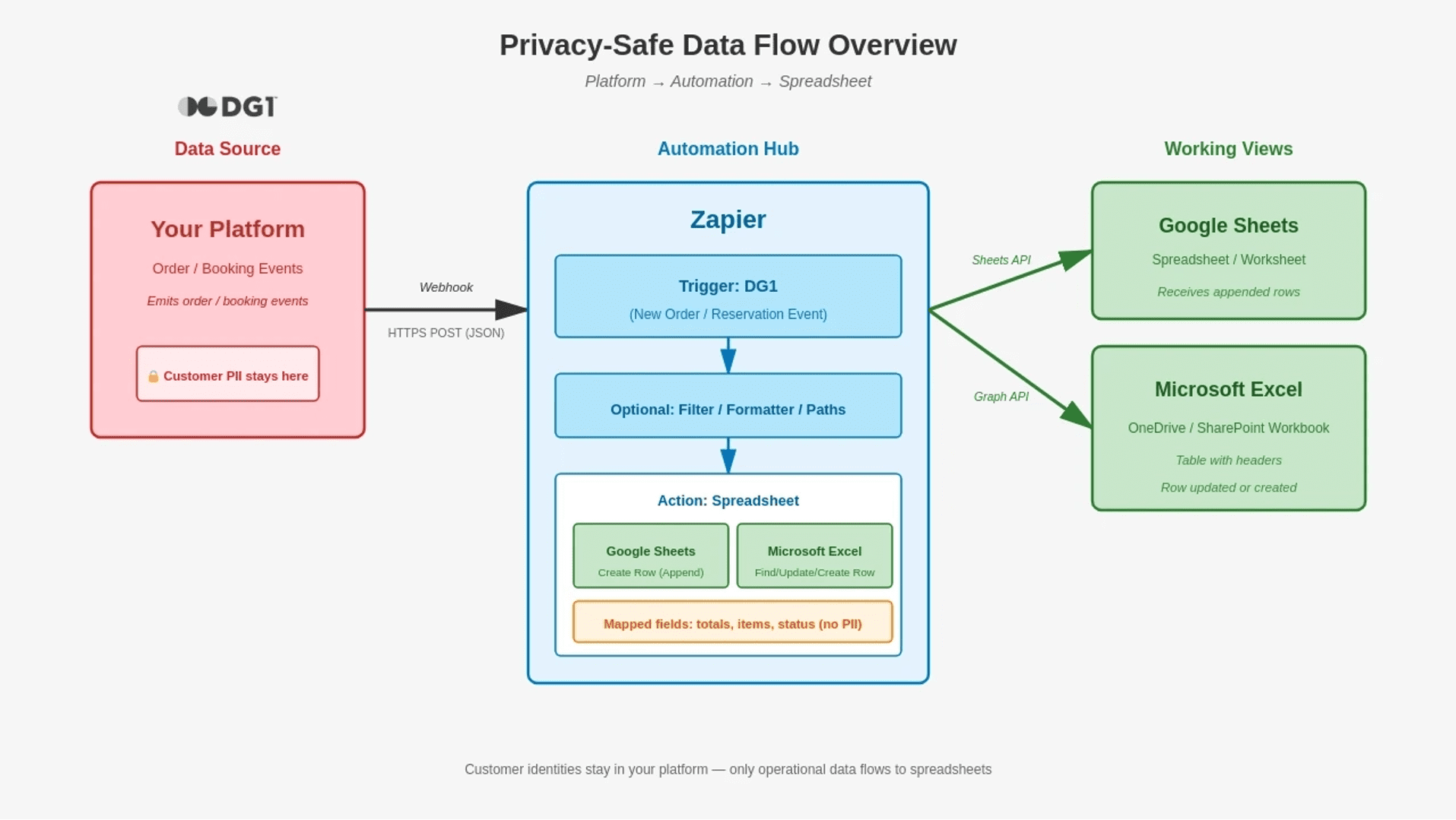
As the diagram shows, when an order or reservation happens, Zapier picks up the event and sends only the fields you've chosen to the spreadsheet — no customer details included.
Your platform fires an order or reservation event containing all transaction details
Zapier catches the event, applies filters (e.g., "paid orders only"), and maps only the fields you've approved
Your spreadsheet (Google Sheets / Excel) receives a new row with PII-safe data — totals, status, items — updated within minutes
The key principle: Customer identities stay in your platform; only operational data travels to the spreadsheet.
What to Include (and Exclude)
Once the automation is running, the key decision is which fields to include. The goal is simple: enough data to make decisions, nothing that identifies a customer.
You can share customer details with staff who need them — GDPR allows that for order fulfillment, support, and similar tasks. But for dashboards, huddles, and partner views, you usually don't need names to make decisions. Leaving them out is simpler and safer.
Recommended Columns
Column |
Example |
Purpose |
order_id |
4521 |
Unique key for lookups and updates |
store |
Vancouver |
Filter by location |
order_date |
2025-11-25 |
Time-based analysis |
status |
Paid |
Track fulfillment state |
items |
Coffee Beans 1kg x2, Ceramic Mug x1 |
Quick order summary |
total |
$47.50 |
Revenue tracking |
channel |
Web / Newsletter / Social |
Attribution |
What to Leave Out
Field |
Why Exclude |
Full name |
Not needed for operational decisions |
Email address |
Privacy risk; use masked version if needed |
Phone number |
Same as above |
Full address |
Only needed for shipping — keep in DG1 |
Payment details |
Never share outside secure systems |
If you need a customer reference, use a masked format (e.g., \"H. S***\" or \"h***@dg1.com\") or an internal customer_id.
The Privacy Advantage
This approach isn't just about convenience. It's about building privacy into how your business operates.
When you share a spreadsheet with franchise partners, you're not trusting them with customer data — because customer data isn't there. When an employee leaves, you don't worry about the sales reports they downloaded. When auditors ask about data access, you have a clear answer: operational data goes to spreadsheets, customer data stays in the platform.
Privacy by design means fewer decisions, fewer risks, and fewer things that can go wrong.
How to Set Up Your Privacy-Safe View
With DG1 and Zapier, most users get their first working sheet live in a single session. Here's the step-by-step process.
Step 1: Prepare Your Spreadsheet
Google Sheets: Create a new worksheet with a header row matching your column names (orderid, store, orderdate, etc.).
Microsoft Excel: Create a workbook in OneDrive or SharePoint. Convert your data range into a Table (Insert → Table) and give it a name. This enables row lookups and updates.
Step 2: Set Up the Automation
Using Zapier:
Trigger event: Choose DG1 as the trigger and select the event Order or Reservation
Add account: Allow Zapier to access your DG1 account. Enter your DG1 URL and follow the on-screen instructions to authorize
Test the trigger to confirm Zapier can receive your data
Step 3: Map Your Fields
In your Zap's action step:
Choose Google Sheets → Create Spreadsheet Row (or Excel → Find Row / Create Row)
Select your spreadsheet and worksheet/table
Map only the PII-safe fields from DG1's payload to your columns
Set order_id as your unique key for updates
Step 4: Add Optional Filters
Before the spreadsheet action, add a Filter step:
Only continue if status equals paid (or your preferred criteria)
This keeps your sheet clean and focused on confirmed transactions
Step 5: Test and Activate
Run a test through the complete Zap
Verify the row appears in your spreadsheet with correct data
Publish the Zap to make it live
New orders will now flow into your sheet automatically.
Common Questions
Does this replace my DG1 dashboard?
No. Your dashboard remains the full view with complete customer details. The spreadsheet is a focused, shareable working view for huddles, partners, and quick analysis.
Do I need to export anything manually?
No. Updates flow automatically within minutes of each order.
What about multiple stores or brands?
This is where the approach shines. One spreadsheet can show a unified rollup across all locations, filterable by store, brand, or channel.
Google Sheets or Excel?
Use whichever your team prefers. For Excel, the file must live in OneDrive or SharePoint (not local), and data should be in a named Table.
Can I change columns later?
Yes. Update your spreadsheet headers, adjust the field mapping in your Zap, and re-test once.
Turn Data Into Decisions with DG1
Sharing business data doesn't have to mean sharing customer data. With the right setup, your team gets the numbers they need while customer identities stay exactly where they belong — in your platform, not in shared spreadsheets.
This isn't just a privacy win. It's an operational one. No more waiting for someone to pull a report. No more redacting spreadsheets before sharing them with partners. No more awkward conversations about who has access to what. The data flows automatically, and the boundaries are built in.
With DG1's webhook capabilities, your first privacy-safe "Today" view can be live in a single session:
DG1 stays the source of truth for customer data
Your team gets a live, filterable working view
Partners and franchisees see what they need — nothing more
Ready to put your data to work without putting your customers at risk? If you're already a DG1 user, your webhook settings are waiting in the dashboard. If not, book a demo to see how privacy-safe reporting works in practice.